



본문 바로가기Skip to main content
Windows desktop app
Free demo

One computer, two workers.

Write a request, and AI does it in a separate workspace. You keep using your screen.

Requires Windows 11 Pro, Enterprise or Education, version 24H2 or later. Not usable on Windows Home.

Can't be installed on PCs with Smart App Control turned on.

Check: Settings > Privacy & security > Windows Security > App & browser control

v0.171.12 · 10.9 MB

The Luvo bar taking a request, then the result file opening
An example request: total a purchase-order file by customer and save the result as a file. While AI works, the bar shows 'AI is working'. When it finishes, the Open file button opens the result.

A separate workspace

While AI works, the bar shows 'AI is working' and a Stop button.

'AI is working' and a Stop button shown below the Luvo bar

When it needs your OK

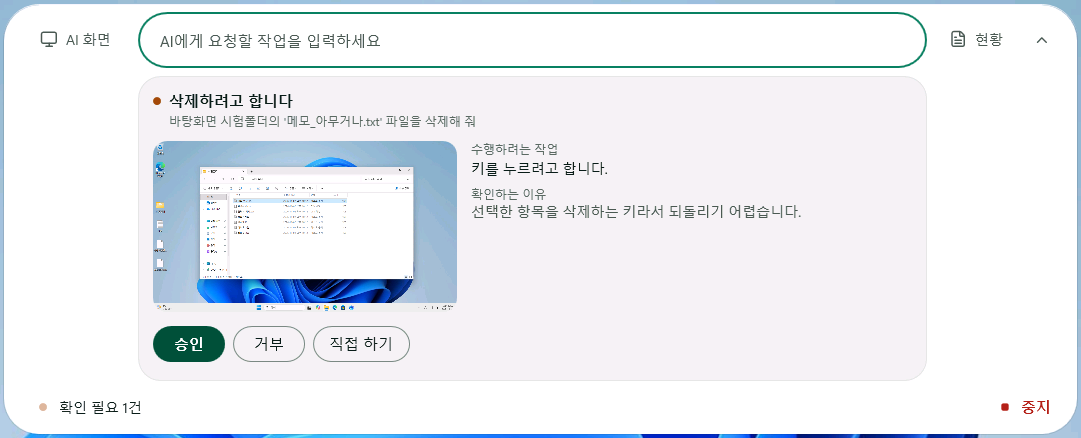
If a confirmation card appears in the bar during a task, read it and select Approve or Reject. The task waits until you choose.

A confirmation card in the Luvo bar that asks before deleting, with Approve, Reject and Do it myself buttons

Done, with a notice

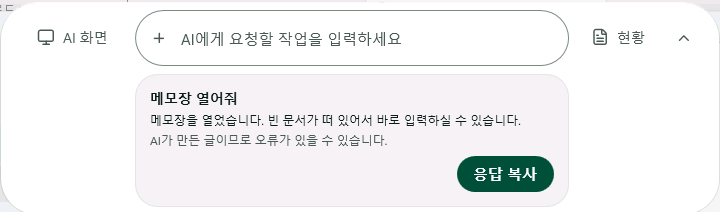
When a task finishes, the bar shows a notice.

Below the Luvo bar, a notice with the task name 'Open Notepad', the AI's answer 'Notepad is open. A blank document is ready for typing.', and a Copy response button

The result is a file

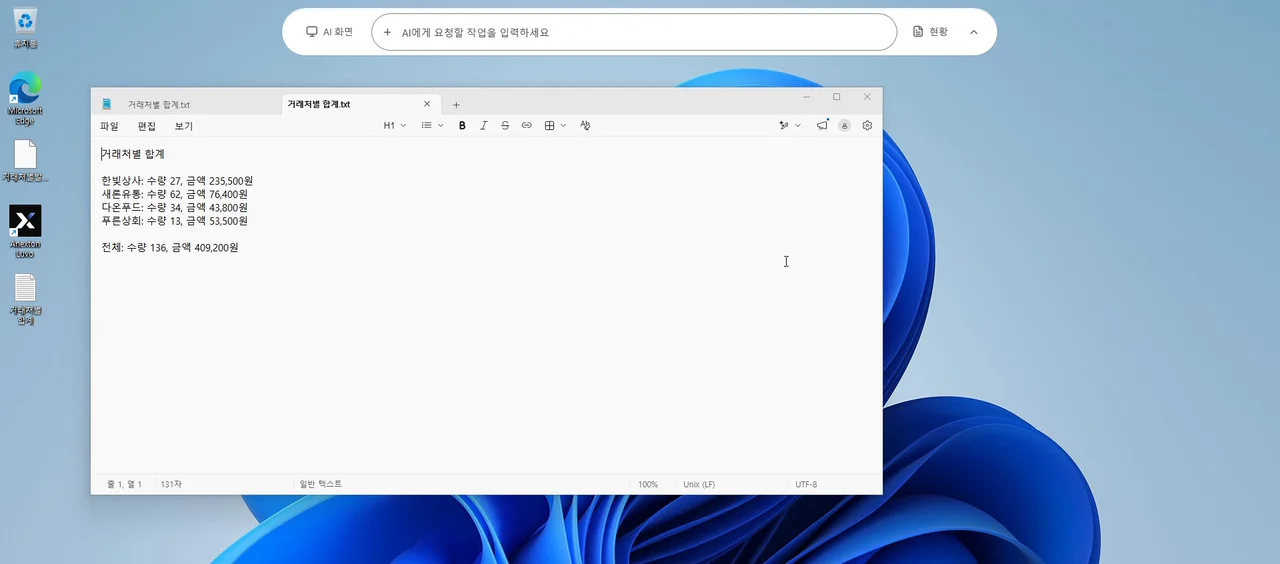
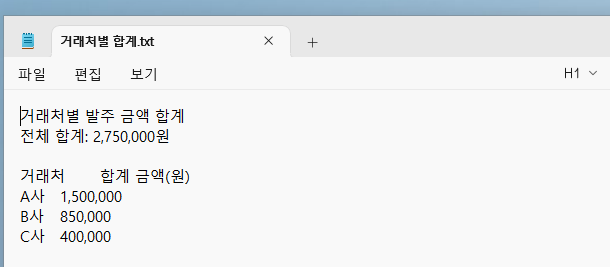
Open the result file and check it.

The result file opened in Notepad: totals per customer and an overall total of 2,750,000 won

Getting started

  1. 1

    Download and install

    Windows shows a warning. Follow the installation steps below.

  2. 2

    Sign in with your Anexton account and agree

    On first run you sign in in your browser. You must agree to the overseas transfer of information to use the AI.

  3. 3

    Bring down the bar and write the task

    Move the pointer to the top center of the screen and the Anexton Luvo bar slides down (shortcut: Ctrl+Alt+L). Drag the files you need onto the bar.

  4. 4

    The installer turns on the AI workspace

    The installer turns on the AI workspace. If it is off, the bar shows a message when you send your first task. Select Status on the bar, select Turn on AI workspace, then select Yes in the User Account Control window. If it asks for a password, enter an administrator account name and password. You do this once on this PC, and the task then continues.

  5. 5

    If asked, enter your Windows password

    The AI workspace opens with your own Windows account. On a PC where it does not open automatically, a Luvo window asks for your password once. Use your Windows sign-in password, not your PIN. In Luvo Settings > Advanced, save your Windows password and the password window no longer appears after that. Choosing the option to stop asking on this PC in the password window does the same. The password is stored in Credential Manager on this PC. Don't turn it on if several people use the PC.

First requests, approval cards and reporting a problem: Manual

Before you start

What you need
Requires 64-bit Windows 11 Pro, Enterprise or Education, version 24H2 or later, and an internet connection.
What goes to the AI
Your instructions, the file content the AI reads and screen images (if turned on) are sent to AI providers in the USA (OpenAI or Anthropic).
Limits of AI results
Don’t make decisions that affect rights, eligibility, pay, or health based on AI results alone.

Details: Privacy Policy

Using it at your company

Anexton One brings private files, document-aware AI, Cloud PCs, and remote access into one workspace platform.

If you join a company, the personal records you made in Luvo stay on your side, and the company cannot see them.

Anexton Luvo

v0.171.12Demo

Windows app

This is a demo version; some features are not finished.

Known limitations of the demo version
  1. This demo version is not signed, so Windows shows a warning when you install it. It can't be installed on PCs with Smart App Control turned on.
  2. The AI workspace needs Windows 11 Pro, Enterprise or Education.
  3. The AI workspace signs in with your Windows account. Startup apps such as messaging apps may open in it too, so turn off their automatic startup.
  4. When the AI gets stuck, it stops the task and tells you to check the result.
  5. If an instruction is unclear, the AI asks in the bar at the top of the screen. Pick an option, or select the button that declines to answer.
  6. Free usage has a monthly limit. When many people are using the service, try again a little later.
  7. Tasks that type Korean text directly on the screen may give wrong results.
  8. Check the result file even when the task shows as complete.
  9. When a task finishes, the result is applied to the original file right away. The original is kept separately and you can undo it.
  10. If you closed or missed the password window, select Enter password on the bar at the top of the screen.
  11. When the password window appears, enter your password within five minutes. If you are late, the window closes and the task stops. Select Try again to enter it again.

64-bit · Internet connection required · 10.9 MB

What changed in this version: the progress bar no longer covers the taskbar, a retry button when the AI workspace fails to start, saving a result file yourself when the app could not verify it

Requires Windows 11 Pro, Enterprise or Education, version 24H2 or later. Not usable on Windows Home.

Can't be installed on PCs with Smart App Control turned on.

Check: Settings > Privacy & security > Windows Security > App & browser control

Download Anexton Luvo

Installing

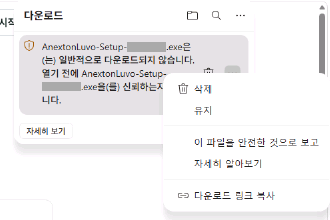
  1. If Edge says the file isn't commonly downloaded, choose to keep the file in the downloads list.The '…' menu of the warning item, listing Delete, Keep and other options
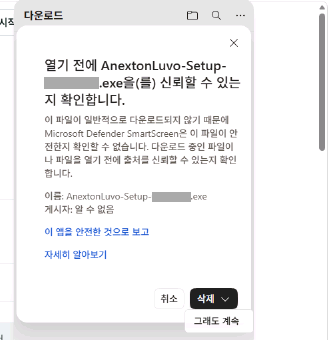
  2. When a window asks whether you trust the file, open the menu at the right end of the delete button and choose the option that continues without deleting the file. Do not choose delete.The confirmation window with 'Keep anyway' listed next to the Delete button
  3. Open the file.
  4. In User Account Control, select Yes. The publisher is shown as unknown. If it asks for a password, enter an administrator account name and password.
  5. In the setup window, select Install. When it finishes, select Finish.

If the window that stops the app from starting shows More info, select More info, then select Run anyway.

Other browsers may show different screens. If your company PC blocks the installation, contact your IT administrator.

Uninstalling

Go to Start > Settings > Apps > Installed apps, select More (…) next to Anexton Luvo, then select Uninstall. Uninstalling deletes the Anexton Luvo data on this PC (settings, history, files the AI created, and the original files kept when results were applied to them). If you uninstall by entering another person's administrator password, your own data stays on the PC. Copy any files you need to another folder before uninstalling.

File checksum (SHA-256)

90e85e1b6c27e873b7a8085cf7fd6c5beadbb814cdc28da1e5fb49edc6a808ce

Installation help: support@anexton.com