



“Where is last year’s contract?”
- Today
- You open folders one by one.
- With Anexton
- Ask your AI agent — it names the document and the page.
Private AI + company server for small business
Anexton One runs on a device in your office.
Anexton Luvo is a Windows app.
For your company
Anexton One
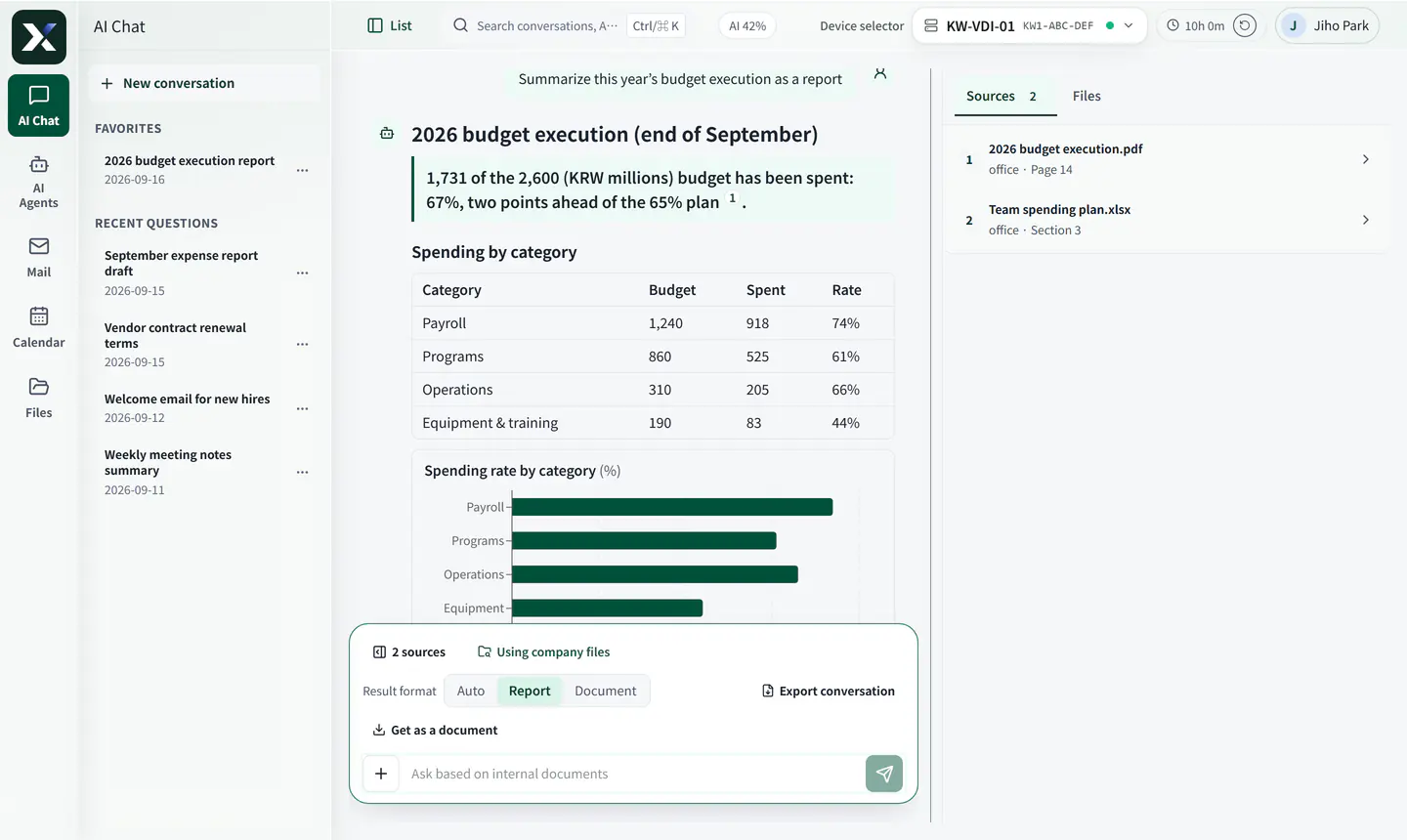
Quoted from real onboarding conversations, translated from Korean.
“The PC that held our shared folder died and we could not open our files. Something like this happens every few years and it keeps me up.”
“Expense reports and approval forms mean typing the same things again every time. Fitting the template and double-checking takes longer than you would think.”
“Out in the field I suddenly need a file that lives on my office PC. Just asking someone to send it over is a chore.”
If your team already uses AI on personal accounts, the company has no record of which documents were sent.
A company AI lets you decide who sees which documents and where each kind is processed.
You set the rules
You decide three things.
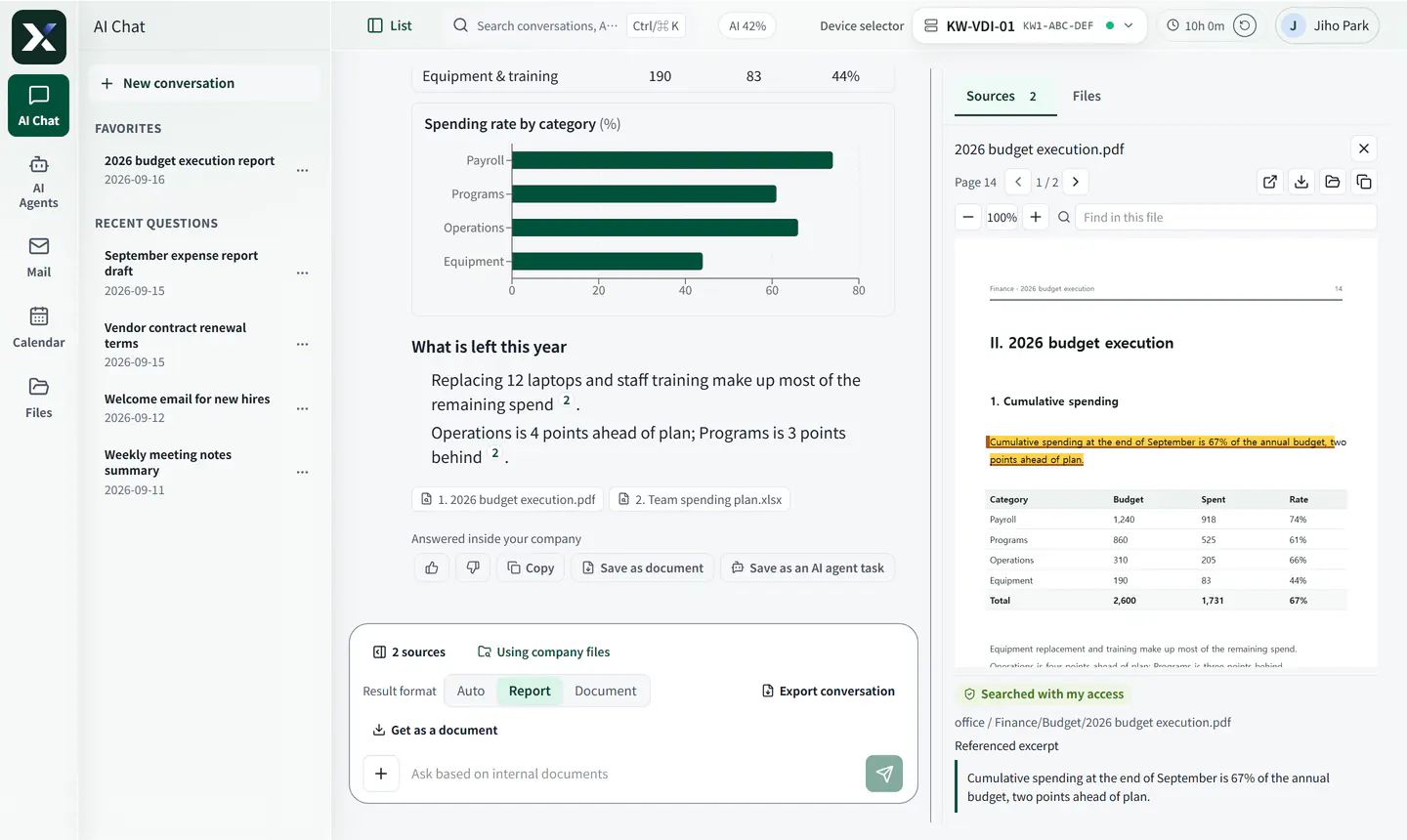
Pick a spot to zoom in on it.
Your folder permissions, unchanged. If an employee cannot open a file, the AI cannot either. Remove access and that file drops out of the very next answer.
Contracts and payroll: no outside AI. Meeting notes and email drafts: Anexton AI. You choose per document type.
Outside AI gets only the question and the few lines it needs. Search indexing runs on Anexton’s servers, which compute it without storing your text (an admin can turn this off). Outside AI is used only after your company consents to overseas transfer, and every answer records where it ran and which pages it read.
You keep using your screen. Before anything hard to undo, such as deleting a file, Luvo asks for your approval.
While it works, the bar shows 'AI 작업 중' (AI is working), and you can stop it at any time.
Before an action that is hard to undo, such as deleting a file, Luvo shows the reason and waits for your approval.
Open the saved file to check it.
Sensitive documents can be kept away from outside AI entirely.
Contracts · Payroll · HR records
Never sent to an outside AI vendor. Processed only up to Anexton’s servers.
Meeting notes · Email drafts · Weekly reports
Heavy computation runs on Anexton’s servers, which store nothing. To answer, only the question and the lines it needs are sent.
Market research · Complex analysis
Only after your company consents to overseas transfer: just the question and the lines it needs. The document file itself is never sent.
The device in your office guards the documents and permissions. Anexton’s servers do the heavy lifting, so a GPU is optional.
When we work on your systems, we follow your rules too.
Morning, before lunch, and on the road.
Morning
Before lunch
On the road
You can start without changing your folders or how you work.
Connect the NAS or Google Drive you already use. If files are scattered across PCs, gather them in the shared folders on your Anexton device.
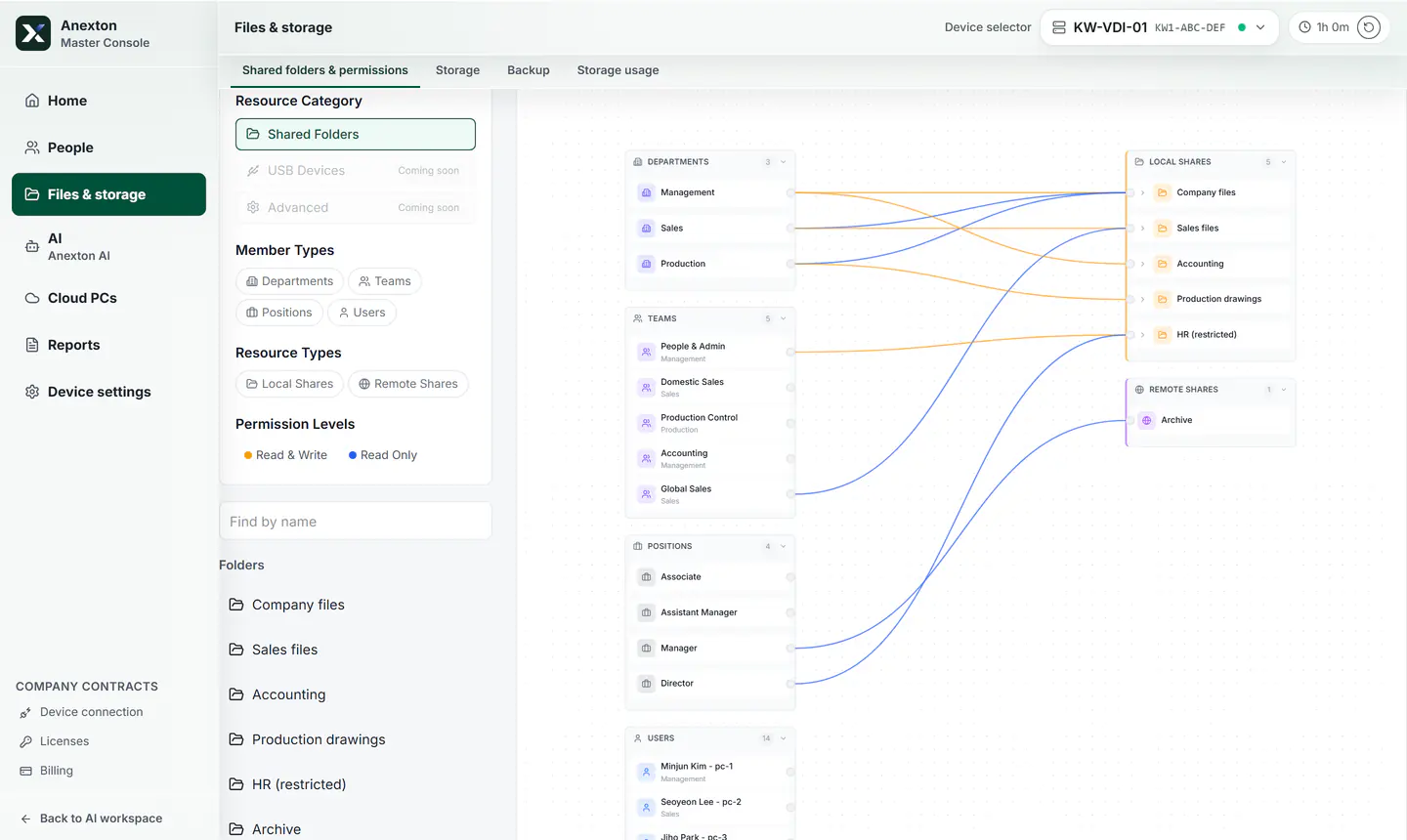
Pick a spot to zoom in on it.
Ask an AI agent to draft expense reports and weekly summaries. Show it one example, and from then on it is one button.
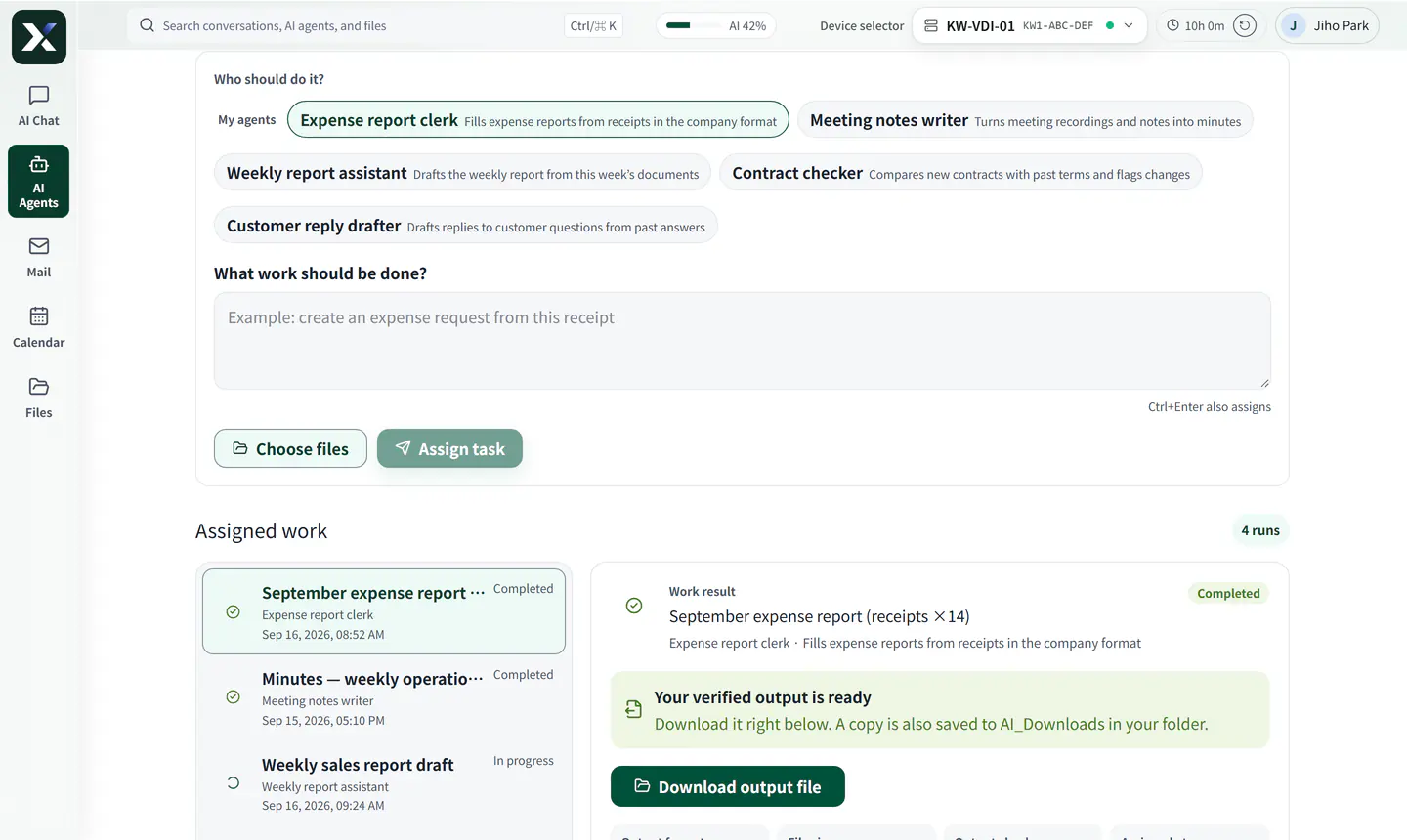
Pick a spot to zoom in on it.
Give employees their own Cloud PC. Open it from home or the field — the files stay on your office device.
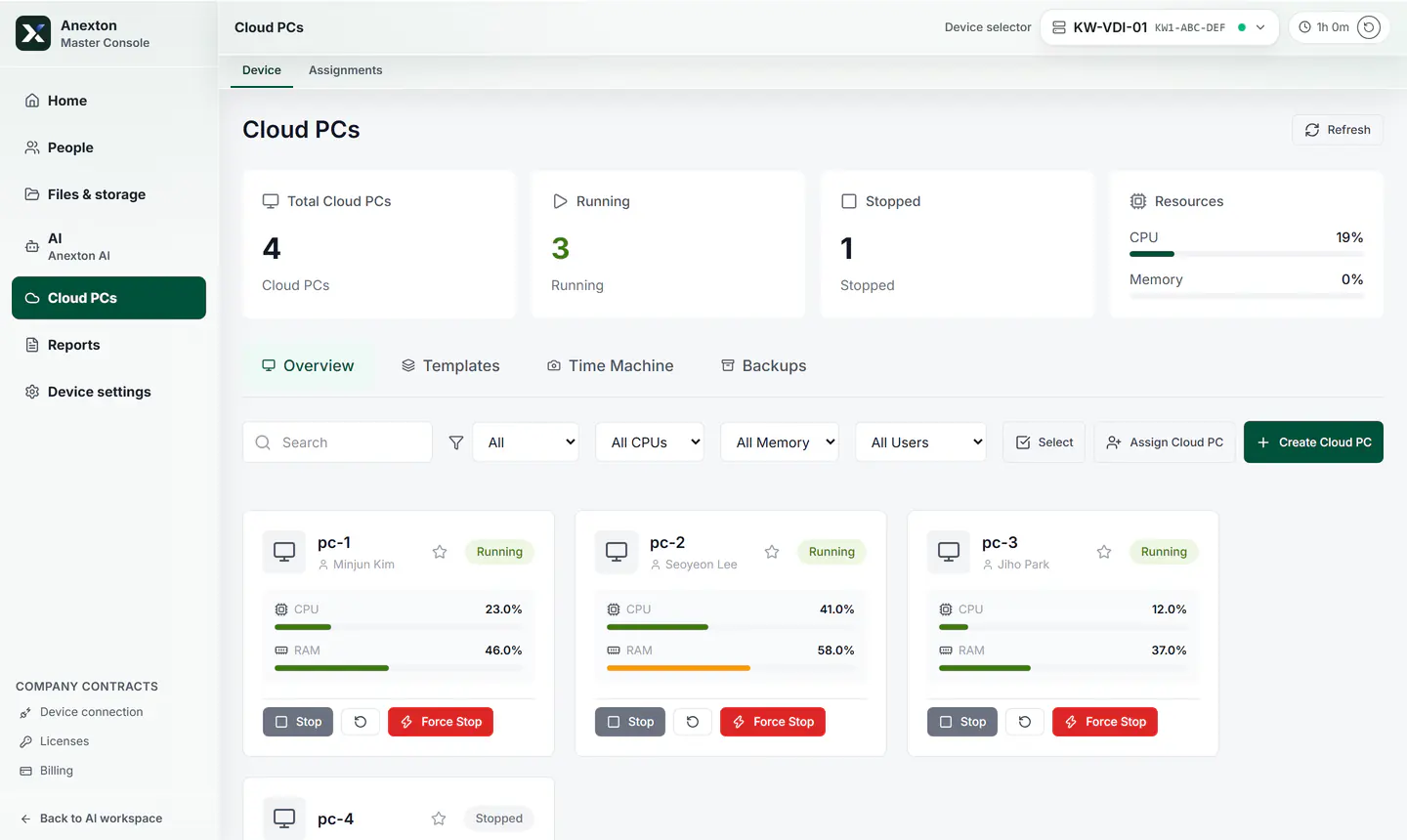
Pick a spot to zoom in on it.
Pick a spot to zoom in on it.
Pick a spot to zoom in on it.
Pick a spot to zoom in on it.
The usual ways to bring AI into a small office, side by side.
| Item | Anexton | Suite AI add-ons | Microsoft Copilot | DIY NAS + AI |
|---|---|---|---|---|
| Cost | From $9 per user/month. No GPU to start | Per-seat fees, plus AI on top | $30 per user/month, plus a separate M365 plan | Hardware upfront, then usage fees or a GPU |
| Company documents the AI reads | Your folders as they are — nothing migrates | Only what you upload to that tool | What you move to their cloud | What is on the NAS |
| Where AI runs | You choose per document type | That vendor’s servers | Microsoft’s servers | Cheaper models send it out |
| Per-employee permissions | Exactly your folder rules. Revoke — it applies at once | Managed separately in the tool | Exposure risk if folders are messy | Folder inheritance |
| Management | One console; every support action is logged | You manage it | You manage it | You build and manage it |
Official list prices as of August 2026. Microsoft 365 Copilot per Microsoft’s official pricing; the Microsoft 365 plan is billed separately. Local AI on a DIY NAS assumes an added GPU.
| Item | Today | Anexton |
|---|---|---|
| File storage | Scattered across employee PCs | One office device |
| Disaster readiness | Nobody owns backups | Automatic, three layers deep |
| What AI can see | The same for every employee | Exactly each person’s permissions |
| Where AI runs | Each person’s own AI account | Set by the company per document type |
Not sure it fits your office? Talk to sales
In use at 4 offices
See customer storiesAnexton One comes in two ways: we set it up, or you install it yourself.
We set it up (offices of 10–49 people)
We prepare the hardware, install it, and train your team.
You install it (personal or small office)
Install Anexton One yourself on a computer you already own.
Prices exclude tax. Billed per user. Example: a 10-person office on Team, $160 per month.
Anything else? Talk to sales.
A personal ChatGPT account knows nothing about your folder permissions. Whatever gets pasted — payroll, contracts — goes along, and the company never finds out. Anexton answers within each employee’s permissions, and sensitive documents can be kept away from outside AI entirely.
No. Start with Anexton AI or an outside AI without one, and add a GPU later if you like. A GPU is only required if every AI step must run on the device in your office.
AI that takes on recurring company work. Show it one example document and it drafts the same document from then on. An employee reviews and submits the result.
No. Connect the NAS or cloud drive you already use. If files have no home yet, keep them in the shared folders on your office device, which we recommend for use with the in-house AI.
Yes. We handle setup and training, and day-to-day management is a single browser tab.
Original documents and the search index stay on your office device. Building the index sends document text, each question or AI employee task sends the passages it needs, and an attached photo is sent as is, to Anexton’s servers for processing — nothing is stored there, and an admin can turn off index processing. Outside AI is used only after your company consents to overseas transfer, and you can block outside processing for chosen documents. Masking personal IDs is an option on request.
They stay on the disks in your office device. Tell us before you cancel and we will help you back them up.
The term depends on the length of the contract. We explain it when we talk.
Backups are kept inside your office only.
One person, free, self-installed. For offices of 10–49 people we recommend Anexton One.
The virtual demo uses the actual product screens.